Internet Access & Computer Labs
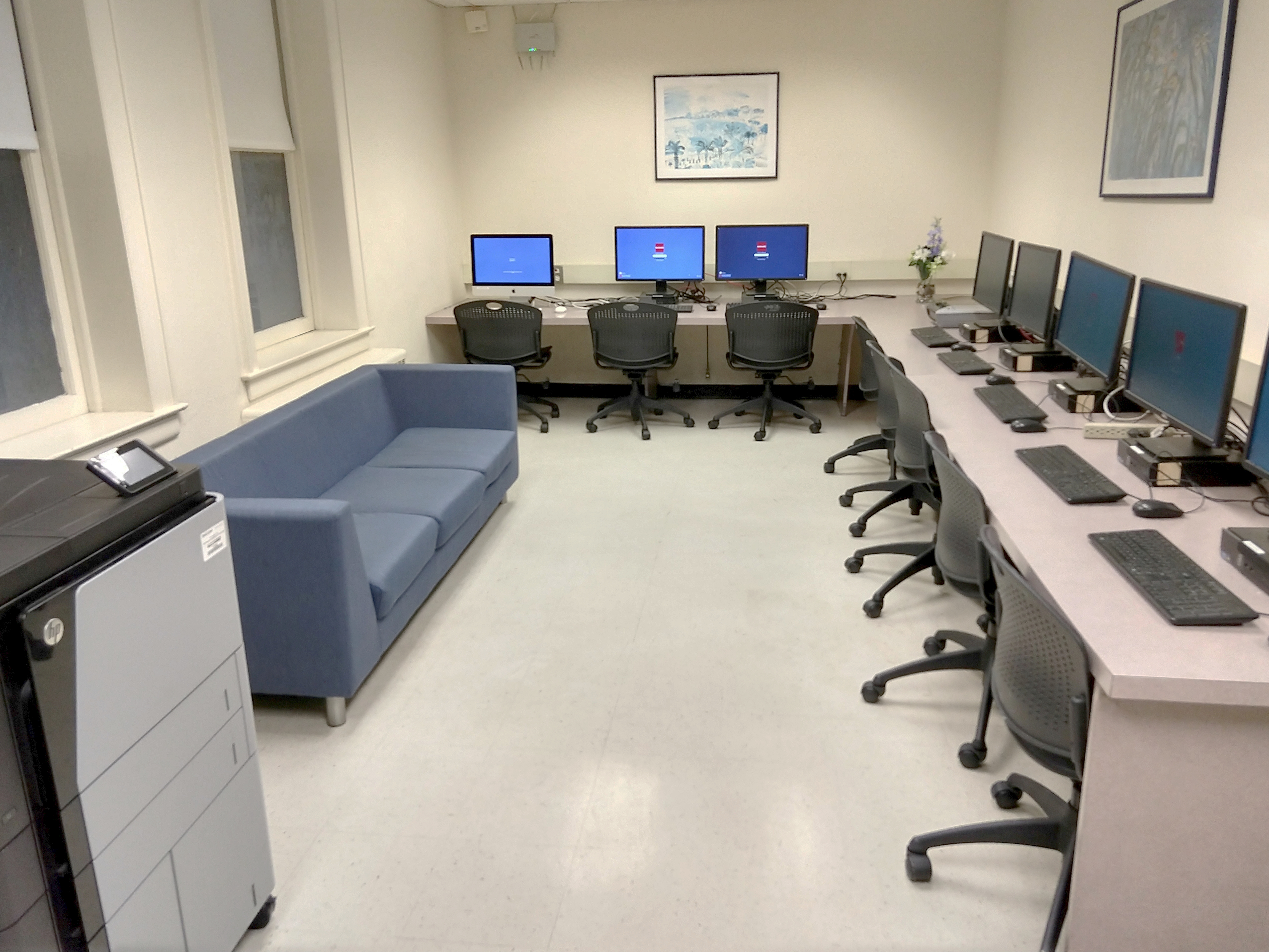 Computer Labs in the Residence Halls
- 616 W 116th St (1st Floor)
- Plimpton (1st Floor)
For more information, please visit BCIT Student Computing > Computer Labs.
Paw Print Printers are available in those computer labs and in the Elliott and Sulzberger lobbies.
Internet Access in the Res Halls (WiFi)
BCIT Student Computing (help@barnard.edu or 212-851-9100) supports internet access on campus and in the residence halls.
Instructions to connect to Barnard WiFi.
- CU students living in BC residence halls should connect to the "Barnard Guest" wifi because they do not have BC network accounts.
Students living in Cathedral Gardens & 108th Street will connect to the Spectrum WiFi and students living in 110th Street & 121st Street will connect to the Verizon FIOS WiFi. Students can see the SSID & password for their suite after checking in on the Barnard Housing Portal (click myHOUSING > Room Assignment).
Reporting Internet Problems
Students who are not able to connect to WiFi should report the problem to Student Computing for assistance.
Troubleshooting FIOS in 110th St / 121st Street
Students at 601 W 110th Street and 537 W 121st Street connect to WiFi through Verizon FIOS. Students can see the SSID & password for their suite after checking in on the Barnard Housing Portal (click myHOUSING > Room Assignment).
If you have difficulty connecting or can't connect to the internet, please follow the troubleshooting questions below:
- Locate the router. It should look like one of the 3 versions shown below:
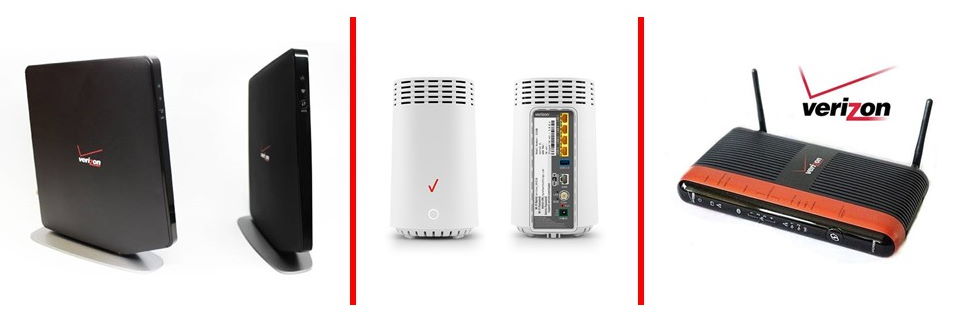
- Check the router for the sticker with the SSID and password to make sure you're connecting to the right network.
- Note: for 121st St, the "repeater" unit which extends the wifi range will have a different SSID & Password on the sticker, but the device is configured to actually use the SSID & Password from the main router.
- Please ensure that BOTH the router AS WELL AS the ONT (black box next to or underneath router) are plugged into a working power source. This means that both the pronged-plug end and the opposite end of the cord that goes into the equipment must be connected on BOTH DEVICES.
- If either device has an 'on/off' switch, please ensure that both are switched to the 'on' position.
- Are the lights on the router lit up? If they are not, please check the power cords or outlets again.
- Please ensure that the Ethernet cable that connects the router to the ONT is plugged into the port marked 'WAN'.
- Please ensure that you are attempting to connect to the correct network (the SSID listed on the Portal) and that you are entering the password in ALL-CAPS as it appears on the Portal.
- Can you see your SSID network name (listed above) on any other device besides the one on which you are unable to find it? For instance, if you cannot see it on your laptop, can you see it on your phone or tablet or a friend's computer?
- Note: suites in 121st Street also have a "repeater" FIOS unit to extend the range of the WiFi. When troubleshooting the WiFi Router, please make sure that you're looking at the correct device. You can power off and turn back on the repeaters as part of the troubleshooting steps.
If you have tried all the troubleshooting steps above and are still not able to connect, please contact BCIT Student Computing for assistance.